

Configure
Write the Prompt
The prompt tells the model what to do, how to respond, and what constraints to follow. Since a Text Generator runs in a single turn with no conversation history, the prompt is the model’s only source of context—include everything it needs to produce the right output in one pass. Here are some tips for writing effective prompts:- Define the task clearly: State what the model should produce (e.g., a translation, a summary, a SQL statement).
- Specify the output format: Describe the structure, length, or style you expect.
- Set constraints: Tell the model what to avoid or what rules to follow.
query variable is automatically inserted into the prompt when you create a new app. You can rename query or change its type.
Variables are placeholders—each one becomes an input field that users fill in before running the app, and their values are substituted into the prompt at runtime. For example:
- Short Text
- Paragraph
- Select
- Number
- Checkbox
- API-based Variable
Accepts up to 256 characters. Use it for names, email addresses, titles, or any brief text input that fits on a single line.
Label Name is what end users see for each input field.
Create Dynamic Prompts with Variables
To adapt your app to different users or contexts without rewriting the prompt each time, add more variables. Each variable collects a specific piece of information upfront and injects it into the prompt at runtime. For example, an SQL generator might usedatabase_type to adapt the output dialect while query captures the user’s natural language request:
Generate or Improve the Prompt with AI
If you’re unsure where to start or want to refine the existing prompt, click Generate to let an LLM help you draft it. Describe what you want from scratch, or referencecurrent_prompt and specify what to improve. For more targeted results, add an example in Ideal Output.
Each generation is saved as a version, so you can experiment and roll back freely.
Ground Responses in Your Own Data
To ground the model’s responses in your own data rather than general knowledge, add a knowledge base and select an existing variable as the Query Variable. When a user runs the app and fills in that field, its value is used as the search query to retrieve relevant content from the knowledge base. The retrieved content is then injected into the prompt as context, so the model can generate a more informed response.Example: Use Content Type to Retrieve Style Guides in a Content Writing App
Example: Use Content Type to Retrieve Style Guides in a Content Writing App
For example, suppose your knowledge base contains style guides for different content types—blog posts, social media captions, product descriptions, and so on.In a content writing app, set
content_type as the Query Variable. When a user selects a content type, the app retrieves the matching style guide and generates copy that follows the corresponding writing standards.Your prompt might look like this:Configure App-Level Retrieval Settings
To fine-tune how retrieval results are processed, click Retrieval Setting.There are two layers of retrieval settings—the knowledge base level and the app level.Think of them as two consecutive filters: the knowledge base settings determine the initial pool of results, and the app settings further rerank the results or narrow down the pool.
-
Rerank Settings
- Weighted Score The relative weight between semantic similarity and keyword matching during reranking. Higher semantic weight favors meaning relevance, while higher keyword weight favors exact matches. Weighted Score is available only when all added knowledge bases are indexed with High Quality mode.
-
Rerank Model
The rerank model to re-score and reorder all the results based on their relevance to the query.
If any multimodal knowledge bases are added, select a multimodal rerank model (marked with a Vision tag) as well. Otherwise, retrieved images will be excluded from reranking and the final output.
- Top K The maximum number of top results to return after reranking. When a rerank model is selected, this value will be automatically adjusted based on the model’s maximum input capacity (how much text the model can process at once).
- Score Threshold The minimum similarity score for returned results. Results scoring below this threshold are excluded. Use higher thresholds for stricter relevance or lower thresholds to include broader matches.
Search Within Specific Documents
By default, retrieval searches across the entire knowledge base. To restrict retrieval to specific documents, enable manual or automatic metadata filtering. This improves retrieval precision, especially when your knowledge base is large or contains content for different contexts. For creating and managing document metadata, see Metadata.Process Multimodal Inputs
To allow users to upload images, audio, or documents when using the app, select a model that supports the corresponding modalities and enable specific file types—Vision, Audio, and Document.You can quickly identify a model’s supported modalities by its tags.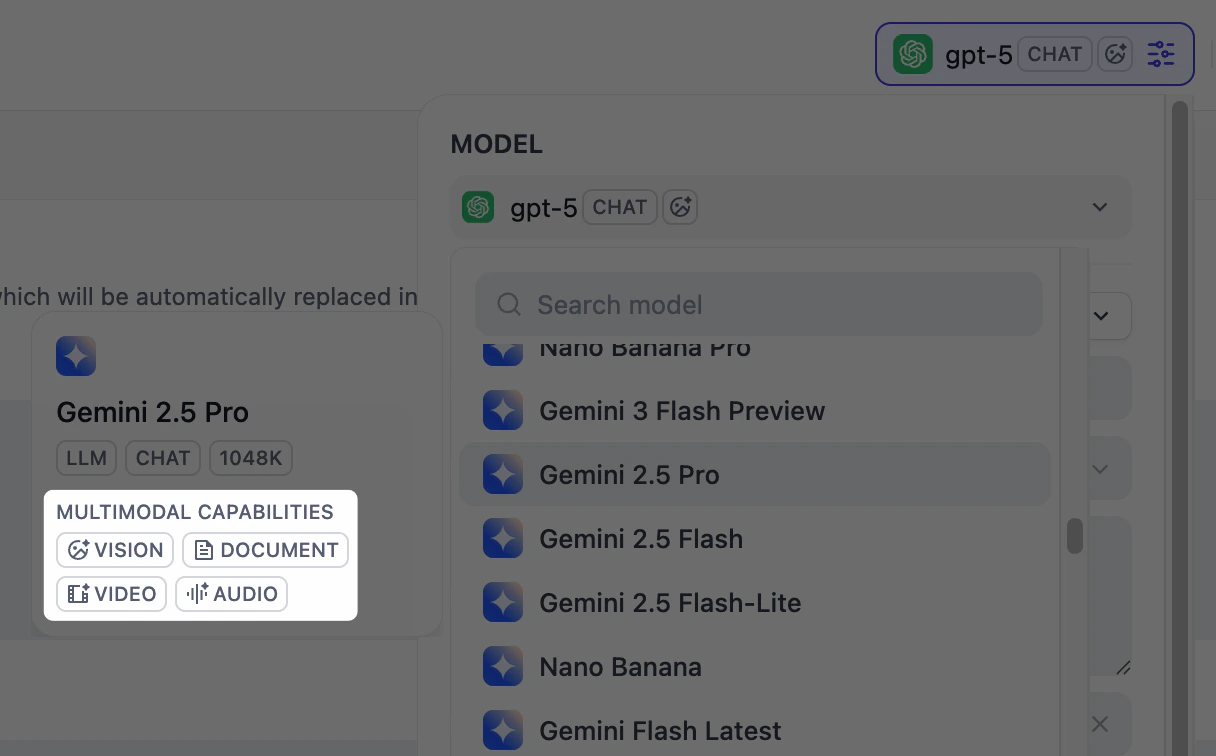
-
Resolution: Controls the detail level for image processing only.
- High: Better accuracy for complex images but uses more tokens
- Low: Faster processing with fewer tokens for simple images
- Upload Method: Choose whether users can upload from their device, paste a URL, or both.
- Upload Limit: The maximum number of files a user can upload per run.
Debug & Preview
In the preview panel on the right, you can test your app in real time. Select a model that best fits your task, fill in the input fields, and click Run to see the output. After selecting a model, you can adjust its parameters to control how it generates responses. Available parameters and presets vary by model.To compare outputs across different models, click Debug as Multiple Models to run up to 4 models simultaneously.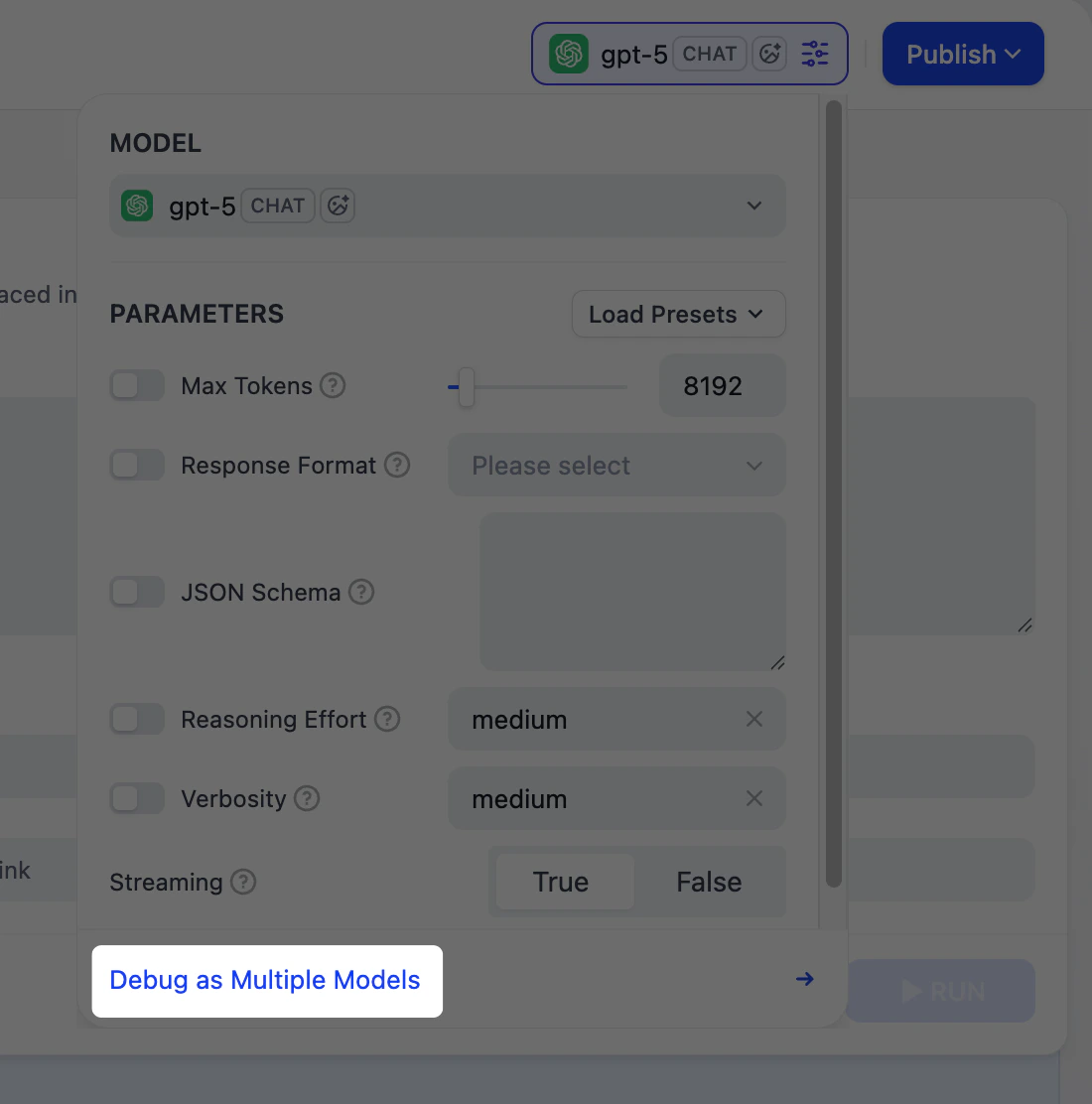
Publish
When you’re happy with the results, click Publish to make your app available. See Publish for the full list of publishing options. When running the web app, users can save individual outputs for future reference.